GZIP Compression in the Browser: How It Works and Why You'd Want It
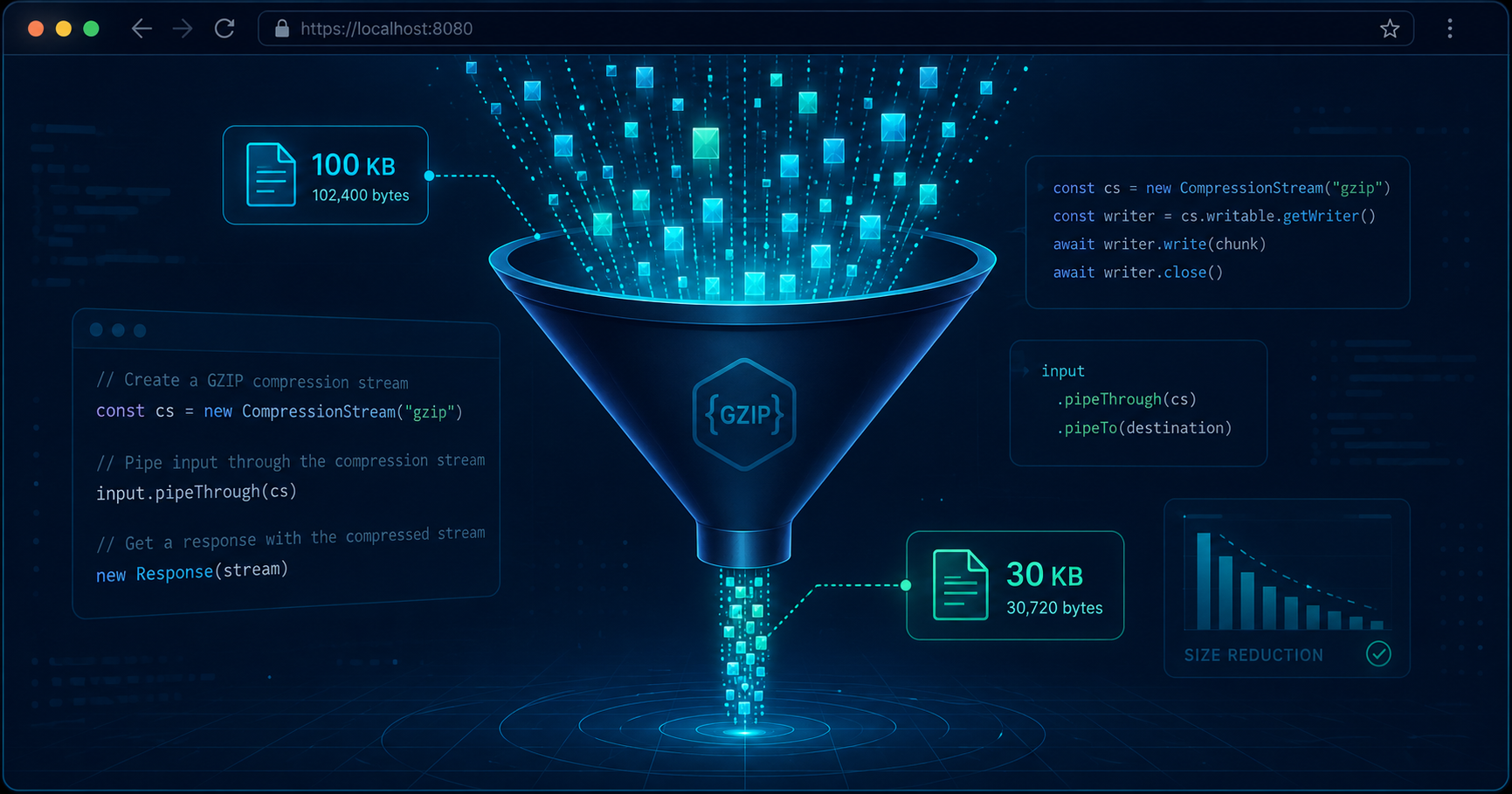
GZIP compression is everywhere on the web. When a server sends HTML, CSS, or JavaScript, it's often compressed first. Your browser decompresses it automatically before the page code sees it. You've probably never thought about it, and that's by design.
But what if you wanted to do the compression yourself, inside the browser? Maybe you're building a web app that handles large JSON payloads before upload. Maybe you want to pack log files client-side before sending them to a server. Modern browsers have a native API for that: the CompressionStream API, which gives you GZIP (and Deflate) compression without any third-party libraries.
Let's look at how GZIP works under the hood, how to use the Compression Streams API, and when client-side compression actually makes sense.
How GZIP Works
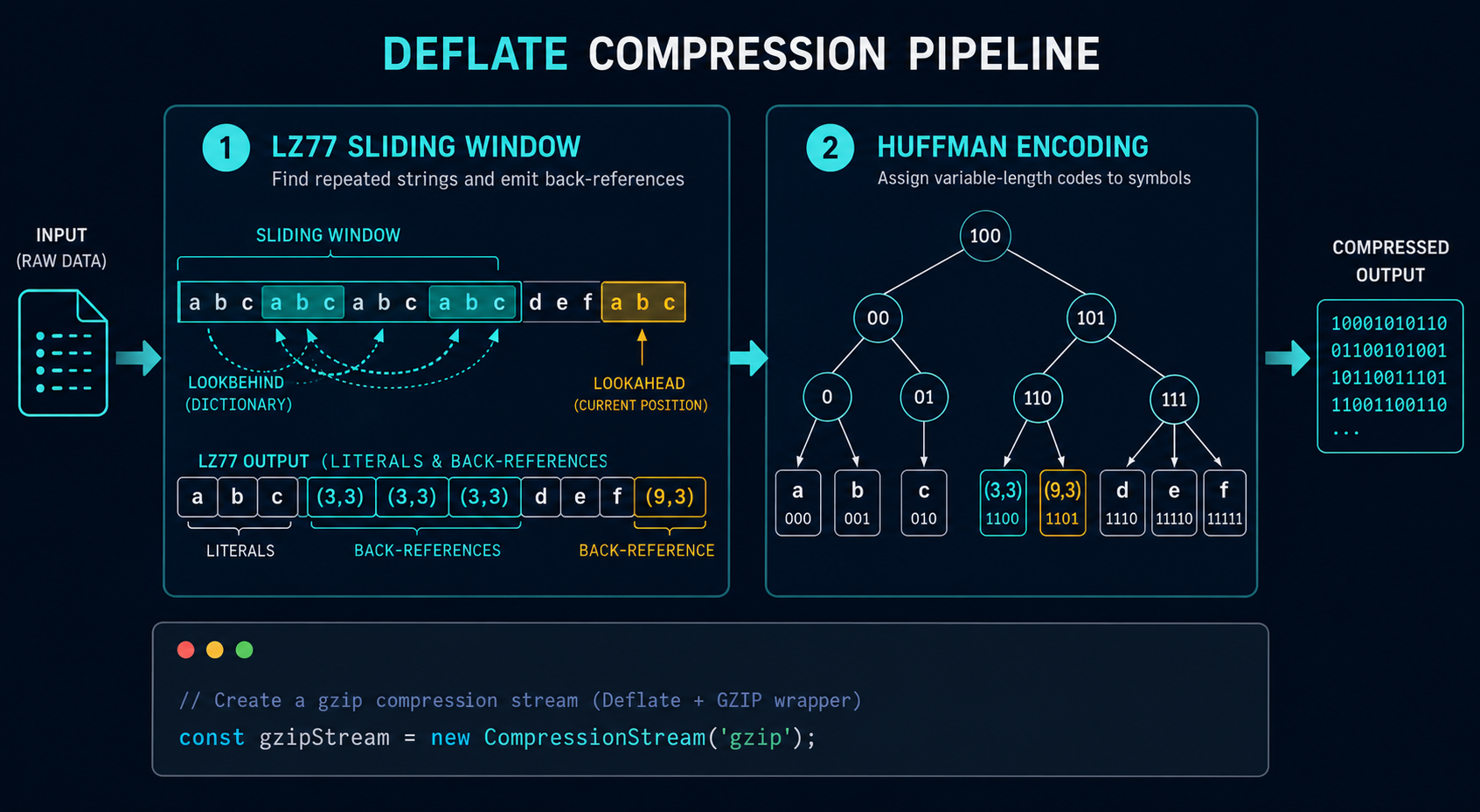
GZIP is a file format defined in RFC 1952. Under the hood, it combines two algorithms: LZ77 (a sliding-window compression pass) and Huffman coding (a statistical pass). The combination is often called Deflate, and it's the same core algorithm used by PNG images, ZIP archives, and HTTP's Content-Encoding: deflate.
Stage 1: LZ77, Finding Repeated Patterns
LZ77 works by scanning data with a sliding window. It looks for sequences of bytes that have appeared earlier in the window and replaces them with a back-reference: a pair of numbers saying "go back N bytes and copy M bytes from there."
A concrete example. Take this string:
the cat sat on the cat hat
An LZ77 encoder with a reasonable window might represent it as:
| Token | Meaning |
|---|---|
t |
literal |
h |
literal |
e |
literal |
|
literal |
c |
literal |
a |
literal |
t |
literal |
|
literal |
s |
literal |
a |
literal |
t |
literal |
|
literal |
o |
literal |
n |
literal |
|
literal |
t |
literal |
h |
literal |
e |
literal |
|
literal |
<–16, 7> |
go back 16 bytes, copy 7 bytes |
The last pair does the heavy lifting. Instead of spelling out "cat hat" again, the encoder points to where those characters already appeared. For longer documents with lots of repetition (HTML with repeated class names, JSON with repeated keys, server logs with repeated IP addresses), this stage alone can cut the data in half.
Stage 2: Huffman Coding, Shrinking Common Symbols
After LZ77 produces a stream of literals and length/distance pairs, Huffman coding takes over. It assigns shorter bit sequences to symbols that appear frequently and longer bit sequences to symbols that appear rarely.
In English text, the letter e might get a 3-bit code while z gets a 12-bit code. In compressed data, a back-reference that appears on every page of a document gets a very short code. The result is that the most common elements consume the fewest bits.
The two stages together (LZ77 first, then Huffman) are what give GZIP its effectiveness on text-heavy data.
The Compression Streams API
For years, browser-based compression meant either relying on the server to do it (and trusting Accept-Encoding negotiation) or bundling a JavaScript library like pako.js or fflate. Both approaches work, but they have downsides. Server-side compression only helps for network transfer, not for client-side tasks like preparing data for upload. JavaScript libraries add kilobytes to your bundle and run on the main thread.
The Compression Streams API solves both problems. It is a native browser API (available in all modern browsers) that provides streaming GZIP, Deflate, and Deflate-raw compression and decompression. Because it streams, it can handle large data without blocking the main thread.
Compressing Data
async function compressData(input) {
  // Encode the string as a byte stream
  const encoder = new TextEncoder();
  const bytes = encoder.encode(input);

  // Create a CompressionStream for GZIP
  const cs = new CompressionStream('gzip');
  const writer = cs.writable.getWriter();
  writer.write(bytes);
  writer.close();

  // Read the compressed output
  const reader = cs.readable.getReader();
  const chunks = [];
  while (true) {
    const { done, value } = await reader.read();
    if (done) break;
    chunks.push(value);
  }

  // Concatenate the chunks into a single Uint8Array
  const compressed = new Uint8Array(
    chunks.reduce((acc, c) => acc + c.byteLength, 0)
  );
  let offset = 0;
  for (const chunk of chunks) {
    compressed.set(chunk, offset);
    offset += chunk.byteLength;
  }
  return compressed;
}

// Usage
const original = JSON.stringify({ records: new Array(5000).fill('some data') });
const compressed = await compressData(original);
console.log(`${original.length} B → ${compressed.byteLength} B`);
Decompressing Data
Decompression looks nearly identical: you swap CompressionStream for DecompressionStream.
async function decompressData(compressedBytes) {
  const ds = new DecompressionStream('gzip');
  const writer = ds.writable.getWriter();
  writer.write(compressedBytes);
  writer.close();

  const reader = ds.readable.getReader();
  const chunks = [];
  while (true) {
    const { done, value } = await reader.read();
    if (done) break;
    chunks.push(value);
  }

  const full = new Uint8Array(
    chunks.reduce((acc, c) => acc + c.byteLength, 0)
  );
  let offset = 0;
  for (const chunk of chunks) {
    full.set(chunk, offset);
    offset += chunk.byteLength;
  }

  return new TextDecoder().decode(full);
}
The API is symmetric, stream-based, and works with 'gzip', 'deflate', and 'deflate-raw' formats.
The pako.js Fallback
The Compression Streams API is well-supported in modern browsers; Chrome, Firefox, Safari, and Edge all ship it. But if you need to support older browsers or want a predictable fallback, pako.js is a popular choice:
// UMD script tag or ES module import
const compressed = pako.gzip(JSON.stringify(payload));
const decompressed = pako.ungzip(compressed, { to: 'string' });
pako is about 20 KB minified. If your browser support matrix includes older Safari or WebView versions, it is a reliable safety net. For modern-only targets, the native API saves those kilobytes.
Client-Side Versus Server-Side Compression
When should you compress on the client versus letting the server handle it? The answer depends on your use case.
Server-Side Compression (The Default)
This is the standard web model. The browser sends Accept-Encoding: gzip in its request headers. The server compresses the response before sending it. The browser decompresses it transparently. You don't write any code.
- Best for: standard HTTP responses: HTML pages, CSS, JavaScript bundles, API responses.
- Advantage: zero client-side code, works everywhere, no CPU cost on the user's device.
- Limitation: only helps during network transfer. The data is decompressed when it arrives.
Client-Side Compression (Before Upload)
This is where the Compression Streams API shines. You compress data in the browser before sending it to a server, for example compressing a JSON payload that will be stored as-is and decompressed later.
- Best for: file uploads, log shipping, offline-cached compressed archives, reducing WebSocket payloads.
- Advantage: saves upload bandwidth, which is often more constrained than download bandwidth. A 10 MB upload that compresses to 2 MB uploads in roughly one-fifth the time.
- Limitation: compression takes CPU time on the user's device. On a modern phone the cost is small; on a low-end device with a large payload it can be noticeable.
The Hybrid Pattern
You can combine both. Compress client-side before upload, store compressed data on the server, and serve it with Content-Encoding: gzip to browsers that request it. The data is compressed once and stays compressed end to end.
When GZIP Does Not Help
GZIP works well on text. It does not work well on data that is already compressed, encrypted, or random. JPEG images, MP4 videos, MP3 audio, and encrypted blobs will not shrink much; sometimes they even get slightly larger. If your payload is mostly images or video, skip the GZIP step and compress at the content level instead.
Browser-Based GZIP in Practice
You can try browser-based GZIP compression yourself with the GZIP Compressor tool on this site. It runs entirely in your browser using the Compression Streams API (with a pako fallback for older browsers). Your data never leaves your device. The tool inputs stay in your browser, processed locally with no server round-trip.
For a deeper breakdown of the GZIP format, the sliding window, and the checksum fields, check out the GZIP compression in the browser guide. It covers the file format structure in more detail than we touched on here.
Summary
GZIP compression is useful far beyond the standard server-to-browser pipeline. The Compression Streams API gives you native, streaming GZIP in the browser without any JavaScript library. LZ77 finds repeated patterns and replaces them with back-references. Huffman coding squeezes the result by using shorter codes for frequent symbols. Together they reduce text by 60-80% in most real-world cases.
If you are shipping large JSON payloads, handling file uploads, or building any client-side feature that sends text-heavy data to a server, browser-based GZIP compression is worth the look. The API is already there, it is fast, and it works.